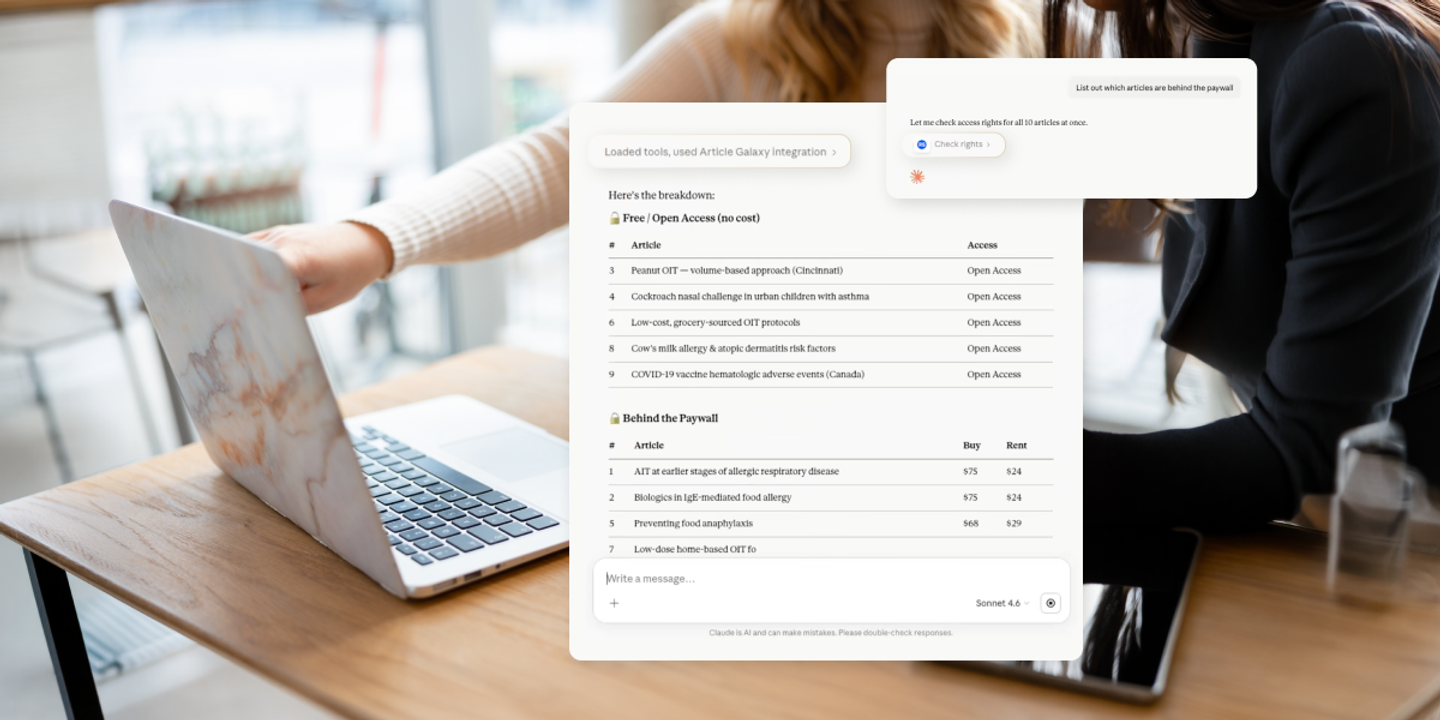
If your research workflow involves any combination of a literature database, an organizational PDF library, Article Galaxy, and an AI tool, you probably spend a lot of time switching between tabs. You search in one place, check access somewhere else, place orders in another window, and then return to your writing. All that back-and-forth adds up quickly.
The Article Galaxy MCP solves this frustrating time drain. It connects Article Galaxy's literature access, ordering, reuse rights, and PDF delivery to AI tools like Claude, ChatGPT, Microsoft Copilot, Cursor, Claude Code, and any other MCP-compatible tool. Setup only takes a few minutes and doesn’t need IT support. Once it's connected, your organizational account, license, and SSO all carry over automatically. Your existing setup simply becomes more powerful.
Here’s how it works in practice. The prompts below guide you through the full workflow, from initial search to PDF delivery to rights verification.
Start With Plain Language, Not A Database
Start with a straightforward search:
"Show me a list of 10 recent scientific articles related to allergy immunotherapy research in pediatrics."
A plain language prompt returns a list of current, relevant articles pulled from any literature source your AI tool is connected to (for example, PubMed via their connected MCP). You don’t need special query syntax, field tags, or database formatting. The prompt does the work regardless of which source is on the other end.
Access Checks, Without The Tab-Switching
With a results list in hand, the next step is figuring out how to actually get them:
"How can I get these PDFs?"
Article Galaxy's MCP runs an access check across the full results list, separating open access articles, subscription-covered items, and titles available for purchase. Finding open access articles can be tricky because licensing, repository versions, embargoes, and publisher rules all play a part. AI chat tools often miss articles that qualify, but Article Galaxy’s system is built to find them more reliably.
Paywalled articles get handled in the same conversation:
"Order all of the paywalled articles."
Since guardrails matter for teams managing research budgets across departments or cost centers, orders aren't immediately submitted. You are asked to confirm the purchase or rental and review the price first.
Status Check: Are My Orders Ready?
Once orders are placed, you can also track them:
"What is the status of these articles I just ordered?"
Article Galaxy returns real-time status per article. From there:
"Download the first PDF."
A direct download link appears right in the chat. You don’t need to log in again or switch back to the Article Galaxy website. The full ordering and delivery cycle stays inside one session.
Got A List Of DOIs? Paste Them Right In.
A common problem in systematic reviews and literature management is having a list of articles but no quick way to check access for all of them at once.
Now, simply ask:
"Do I own any of these articles?"
[list of DOIs]
The MCP runs a check across the organizational PDF library, flags open access availability, identifies subscription-covered titles, and surfaces purchase options for the rest.
For medical affairs teams, regulatory affairs groups, or anyone managing a high volume of literature requests, bulk access checks save a lot of time. This feature works just like it does in Article Galaxy’s main interface, but now you can use it inside your AI tool.
The Rights Question That Usually Gets Asked Too Late
Rights compliance tends to get pushed to the end of the process. These two prompts bring it forward:
"Show me the re-use rights for these articles and put the information in a table."
Article Galaxy organizes reuse permissions across several categories in a single table: internal distribution, medical affairs use, regulatory submission, external distribution, and AI rights. Each article is mapped to what's permitted under existing licensing. The breakdown will vary by article and license, but the table typically surfaces exactly what you need to know: which articles are cleared for AI rights, which are approved for internal or medical affairs use, and where external distribution is restricted. Open access titles are generally the exception.
Having a structured rights summary like this from a single prompt helps teams preparing literature for regulatory submissions, building compliant AI research programs, or just wanting to avoid manual copyright checks. Getting the answer at the start of a project is a lot easier than sorting it out mid-pipeline.
This final prompt retrieves a PDF from the organization's existing library; no new purchase is needed:
"Can you give me the PDF for the article I already own in my PDF Library?"
Article Galaxy keeps track of what your organization already owns. It won’t charge you again for the same article and will show these items automatically during any access check.
Yes, It Uses Your Actual Account
The MCP links to your Article Galaxy account, which uses your organization’s license. All your existing permissions, workflows, and access rules stay the same. If your organization uses SSO, it connects automatically. You don’t need to create a new account or log in more than once.
Usage is also tracked at a general level, like order numbers and usage patterns. This gives library administrators and procurement leads visibility into AI-assisted literature access without logging the specific queries themselves.
What's Already There, & What's Coming
As of now, the MCP handles the core of what most research workflows need: search, access checks, bulk DOI lookup, ordering (with purchase/rental confirmation), real-time order status, PDF delivery, ownership verification, and reuse rights in table format.
Upcoming features include searching your organization’s full PDF library by keyword or citation, viewing order history in the AI tool, and integrating with Article Galaxy References. This will let users work with both personal and shared folders and save articles directly to projects from their AI tool.
Five Minutes To Get Started
If you already use Article Galaxy, you can find setup instructions under Extensions in the product or on the Article Galaxy MCP page. If you’re new and want to try the full workflow, reach out for a configured trial account rather than starting with a free-tier account, which doesn't include the full feature set shown above.
The prompts above are just a starting point. Use them as they are, then adjust the language to fit your specific research context. The more specific your ask, the more useful the output.